
Plan your day around your energy.
VARO arranges your tasks around your best hours and your calendar. This page explains how to install it, connect it and use it.
Free web test version. It runs on iPhone, Android and computers from the browser; no app store needed.
01
Install
VARO installs from the browser in under a minute. It sits on your Home Screen like any other app and opens full screen.
iPhone and iPad
With Safari
- Open varo-app.pages.dev in Safari.
- Tap the Share button (the square with the arrow pointing up).
- Choose Add to Home Screen, then Add.
- Open VARO from the new icon and set it up there.
Android
With Chrome
- Open varo-app.pages.dev in Chrome.
- Tap the three-dot menu at the top right.
- Choose Add to Home screen or Install app.
- Confirm with Install.
Computer
Chrome, Edge or Safari
- Open varo-app.pages.dev.
- In Chrome or Edge, click the install icon at the end of the address bar.
- In Safari on Mac, go to File › Add to Dock.
- You can also use it in a tab without installing anything.
On iPhone, install first and set up after.The Home Screen app keeps its data apart from Safari. What you do in the Safari tab doesn't appear in the installed app, or the other way round.
02
First steps
Five minutes is enough to set up your day. It all happens in the Today tab.
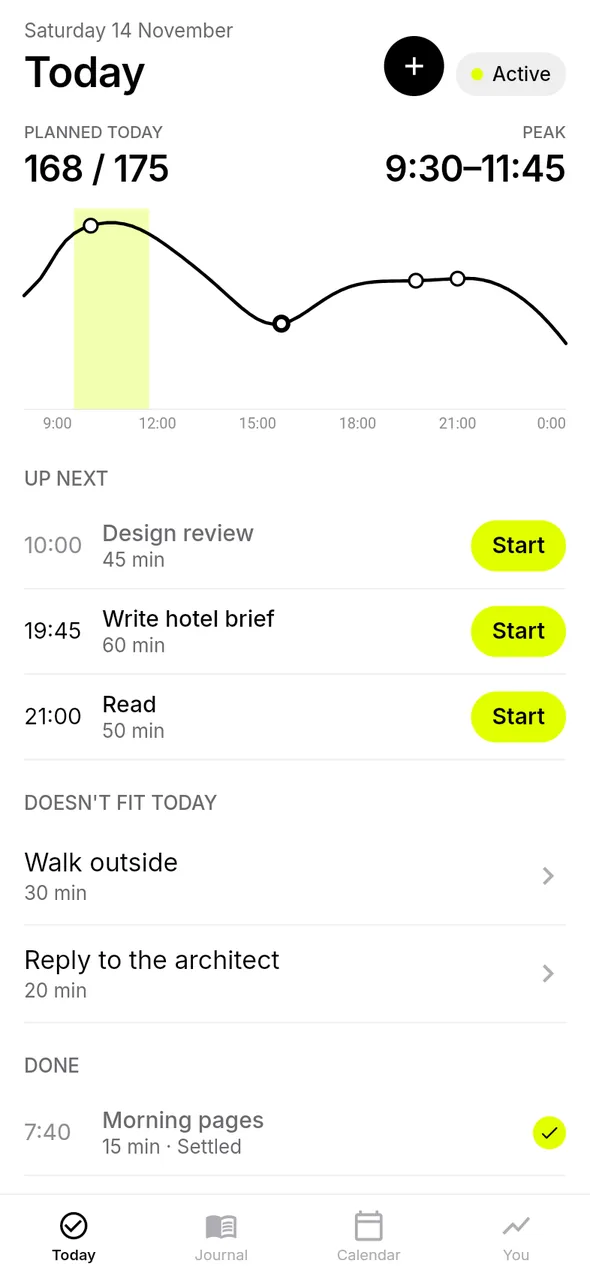
- Tell it when you sleepOn first launch VARO asks when you wake up and go to bed. From that it draws your energy curve and marks your peak, the hours when you work best.
- Add a taskTap +, type what's on your mind and tap Add. VARO finds it a good time. More options lets you set the day, a fixed hour, length and intensity.
- StartTap Start on the task and choose how to focus: Classic (25 minutes on, 5 off), Deep (90 and 20), Open, or let VARO choose from your energy.
- Finish and say how it wentWhen you finish, VARO asks how it felt and leaves room for a note. Those answers adjust the curve for the rest of the day.
- Check inCheck in records your energy from 1 to 10 at any moment. The more check-ins, the better VARO knows your hours.
- What doesn't fitEach day has a limit of 175 points. What doesn't fit appears under Doesn't fit today; move it to tomorrow or to Someday. Nothing goes overdue.
- Low daysRecovery mode lowers the limit to 90 points, shortens focus blocks and counts walks and naps as rest.
- End the dayFrom 17:00, or once nothing is left, slide Swipe to finish your day. What's open moves to tomorrow and routines set for later stay.
- The tourIn You › How to use VARO › Take the tour six screens explain the app in a minute.
03
Connect your calendars
VARO reads your Google Calendar and plans your tasks around your meetings. It's optional: the app works the same without a calendar.
Connect
Once
- In VARO, go to You › Calendars.
- Tap Connect calendars and sign in with your Google account.
- Accept the permissions. Google sends you back to VARO.
- Today's events appear in Today and block that time.
Use
Every day
- Tasks with a fixed hour are written to a calendar called VARO, inside your Google Calendar.
- What you add, move or delete in that calendar changes the task in the app.
- Tap an event in Today to mark it done, with how it felt and a note.
- If something is missing, tap Sync now in You › Calendars.
- What VARO can seeThe list of your calendars and their events, read-only. It can only create and change the VARO calendar. It cannot modify your other calendars.
- When it syncsWhen you open the app, when you come back to it, a few seconds after each change, and every two minutes while it's open.
- One-hour sessionGoogle's permission lasts an hour. VARO renews it by itself when you open the app or come back to it, and meanwhile keeps showing the last events it read. If Google doesn't allow that, you'll see a notice on Today with Sign in to Google again.
- DisconnectIn You › Calendars › Stop using calendars. To remove the permission entirely, go to myaccount.google.com/connections and remove VARO.
Access by invitation.The Google connection is in a closed test: Google only lets invited accounts in. If you see "Access blocked", write to info@varointernational.com with your Google address and we'll give you access.
04
Routines, goals and your week
Three tools so the important things don't depend on willpower. They live in the You tab.
- RoutinesThings that repeat: reading, training, meditating. Each has its days, its time and its length. In You › Routines › New routine.
- The minimumEach routine can have a minimum, for example "10 pages". On a bad day you tick Only the minimum when you finish and the routine counts as done.
- GoalsThree at most. Each has a why and weekly hours, and any task or routine can serve a goal. In You › Goals.
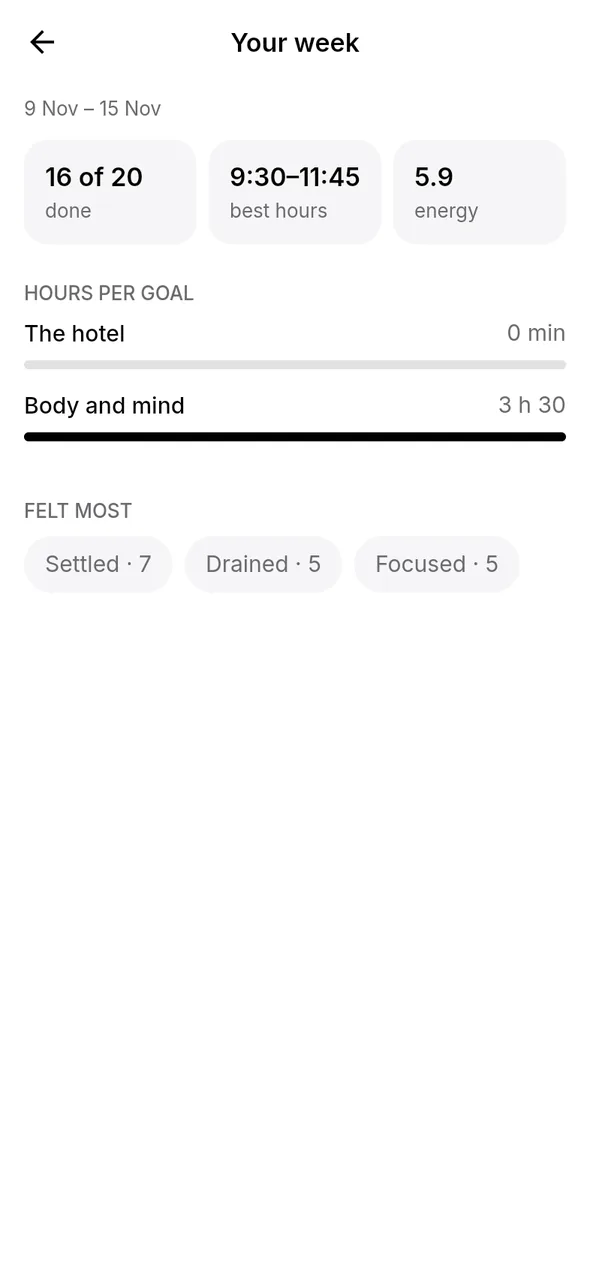
- Your weekA summary: how many tasks you did, your best hours, your average energy, hours per goal, and what slipped twice or more. In You › Your week.
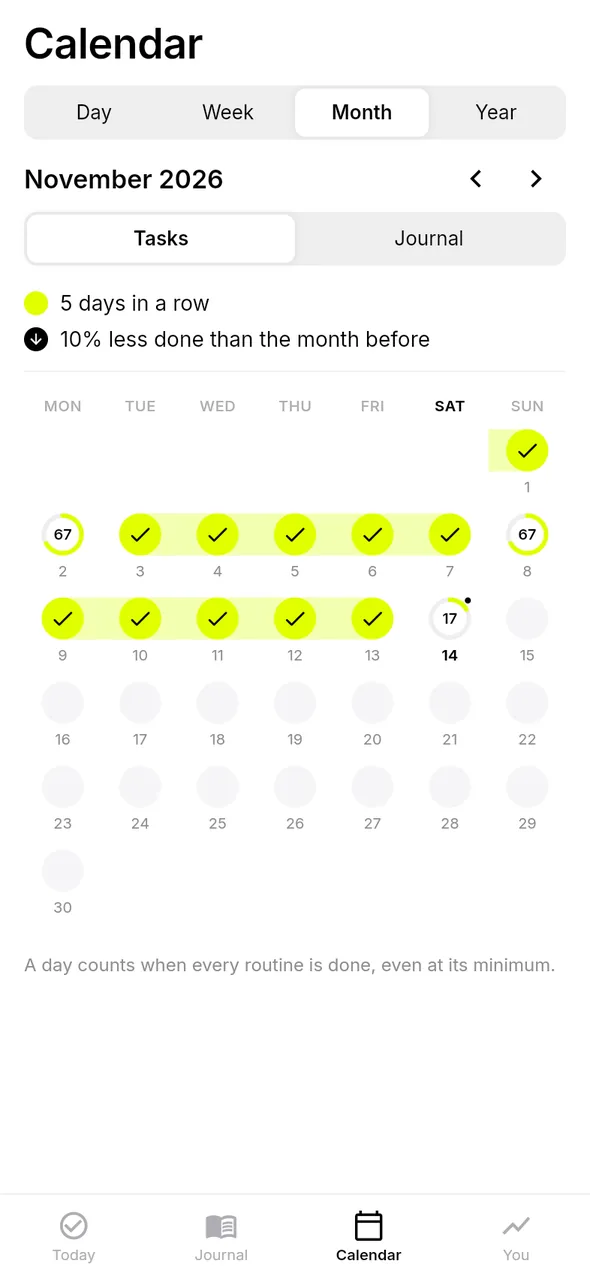
- Calendar and streakThe Calendar tab shows your days by day, week, month or year. A day counts when every routine is done, even at its minimum, and days in a row make your streak. Under Journal, each day's colour is your average energy.
05
Journal and your AI
Write how the day went and, if you want, let your own AI read it to help you see patterns.
- JournalIn the Journal tab you write free entries, with your energy and what you felt. Only you see them.
- Share with your AIIn You › Share with your AI, VARO creates a document called VARO Journal in your Google Drive and keeps it up to date with your journal, your energy check-ins and your tasks with their notes.
- Add it to your AIIn Claude: open your project, then Files, +, Drive, and paste the document's link. In ChatGPT or Gemini: connect Google Drive and add the same document to your project. You do this once.
- What is sharedYou choose: journal entries, energy check-ins and feelings, and tasks. You can switch each part off or stop updating the document at any time.
- Who sees itThe document is yours and private. Nobody else opens it unless you share it in Google Drive or add it to an AI. VARO can only touch the documents it creates itself.
06
Your data
VARO has no accounts and no servers of its own. What you write stays on your device.
- Where it's storedEverything is stored in the browser on your device. In this test version it isn't encrypted, and it isn't sent to VARO or anyone else.
- What leaves the deviceOnly what you switch on: reading your Google calendar and, if you create it, the VARO Journal document in your Drive. Both connections go directly between your browser and Google.
- OfflineOnce opened, the app works without internet: tasks, timer, journal and check-ins. The calendar and the document catch up when the connection returns.
- No backupThe web version doesn't make backups yet. If you clear the browser's data or uninstall the app, everything is lost. Each device keeps its own data: phone and computer don't sync with each other.
- Delete everythingIn You › Settings › Delete everything. It deletes the tasks, entries and settings on that device and can't be undone.
- Privacy policyThe detail of what is handled, and with which Google permissions, is in the privacy policy.
07
Frequently asked questions
What people ask most during the test.
Google says "Access blocked" or "Error 403".
Your Google account isn't on the test list yet. Write to info@varointernational.com from that address, or mention it, and we'll add you.
It says it synced, but I don't see my events.
Check that you signed in with the Google account that holds those events, and that there are events between yesterday and the next fifteen days. Then tap Sync now in You › Calendars. If you see "Sign in to Google again", do it: the session lasts an hour.
Why does it sometimes ask me to sign in to Google?
The web version stores nothing on a server, and Google limits the access it gives a page like this to one hour. VARO renews it by itself when you open it; it only asks when Google requires you to confirm. Your events stay on screen meanwhile.
I changed an event's time in Google Calendar. Does VARO update?
Yes, at the next sync: when you open the app, when you come back to it, or at most two minutes later if it's open.
I marked an event done and then moved it. Is it still done?
Yes. The mark follows the event. If it was a mistake, tap the task under Done and choose "Not done yet".
I see a task twice.
This usually happens when something exists as a routine in VARO and also as a repeating event in the VARO calendar in Google. Keep only one of the two.
I installed the app on my iPhone and it's empty.
The installed app and the Safari tab keep their data separately. Always use the one on the Home Screen and connect Google again there.
How do I paste text in the app?
Tap Paste under the field. You can also press and hold inside the field and choose Paste. iPhone may ask you to confirm with its own Paste button.
How do I report a problem or suggest an idea?
In the app, go to You › How to use VARO › Report a problem or send an idea. Your mail app opens with the message ready; you press send. You can also write straight to info@varointernational.com.
How do I update the app?
It updates itself. If you don't see a recent change, close it completely and open it again with a connection.
Which languages does it have?
Spanish and English. It follows the phone's language, and you can change it in You › Settings › Language.
How much does it cost?
The web test version is free. The App Store and Google Play versions are in preparation.
Do I get notifications?
Not in the web version. They will come with the store versions.
Updated 14 November 2026. This guide describes the web test version.
Everything to reach your goals. Let's get started.
In the app: You › How to use VARO › Report a problem. Or write to info@varointernational.com.
